
Enrolled Agent Management
In a BYOD world, organizations need to ensure that their data is safe and secure. The Atmos Agent routes traffic so that the information is channeled through secure connections.
Administrators can monitor and manage the devices used in the organization that have the Atmos Agent installed. The Enrolled Agents screen provides information about user details, Atmos Agent Status, Device Information, and configured device posture checks.
Monitoring Enrolled Agent Activity
- In the Management Console, go to Settings -> Enrolled Agents.
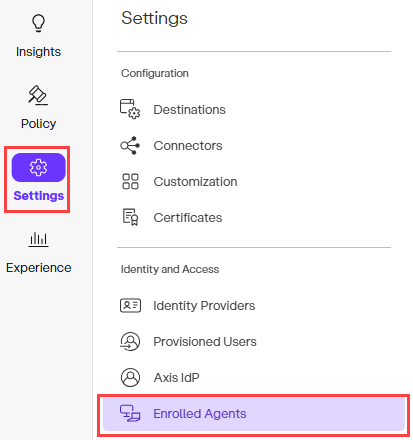
- Click Information icon to learn more about a specific client.
NoteThe Enrolled Agents page only displays information for devices with agents that have checked in within the last 90 days.
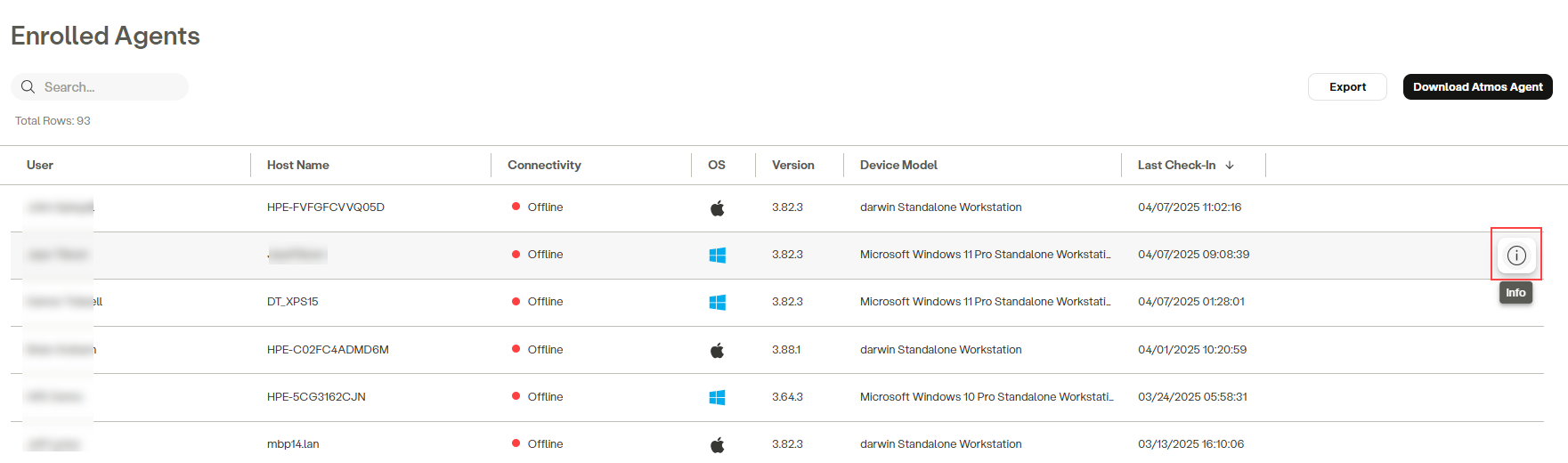
Agent Always On
The Agent Always On column displays the agent status per agent as follows:
- Enabled—The Agent Always On feature is enforced for this agent.
- Disabled—The Agent Always On feature is disabled for this agent
- Not Reported—The agent has not sent its Agent Always On status due to the agent is running a version older than 3.100.0 r a device that has not been reported yet.
For more information on the Agent Always On feature, see Atmos Agent Always On.
Connectivity Status
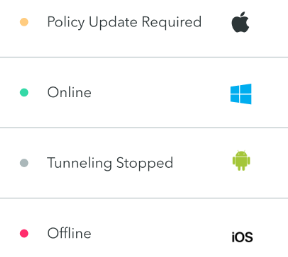
- Online: The HPE Aruba Networking SSE Agent is currently active on the device.
- Offline: The HPE Aruba Networking SSE Agent is currently inactive on the device.
- Tunneling Stopped: The HPE Aruba Networking SSE Agent is active on the device, but traffic tunneling is paused.
- Policy Update Required: The HPE Aruba Networking SSE Agent is currently active on the device, and there is a new policy update. The user must click Reconnect on the notification appearing in the Agent window to apply the update.
Client Information
Click the Information icon to open the Client Information dialog and view additional information about the Agent.
The Agent Information dialog displays more information about the client and its activity.
User and Agent Details
The User and Agent Details view provides information about the user, the user's device specifications, and information about the status of the HPE Aruba Networking SSE Agent installed on the device.
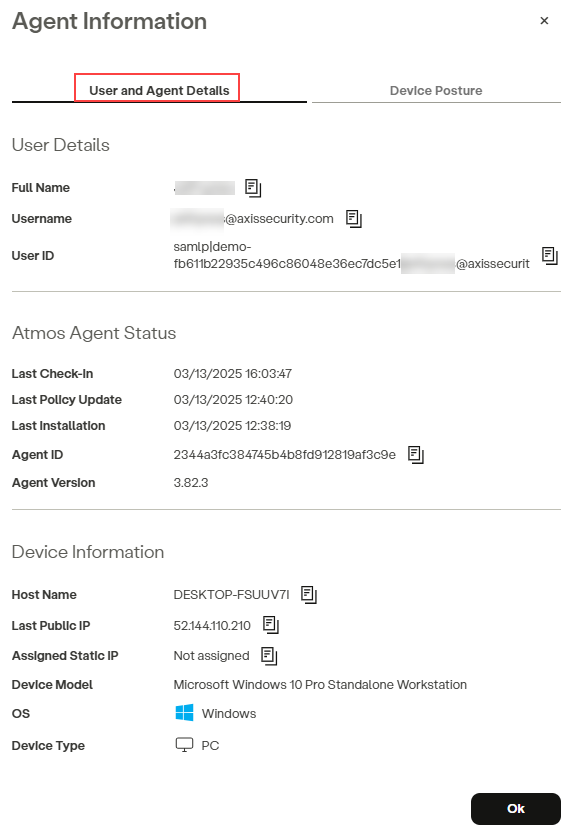
User Details
Provides the user's details as they appear in the IdP.
{user.Axis Client} Status
- Last Check-In: The last time the Client was in contact with the HPE Aruba Networking SSE Cloud (within the last 90 days).
- Last Policy Update: The last time the Client's policy rules were updated.
- Last Installation: When the Client was installed (first install or upgrade).
- Agent ID: The Client's unique ID.
- Agent Version: The current Client version.
Device Information
Provides information about the device on which the Atmos Agent is installed.
Device Posture
The Device Posture view provides information about the device posture checks that were configured for the user's device.
Click here to learn more about configuring the HPE Aruba Networking SSE Agent device posture.
NotesThe Device Posture view provides information about device posture configurations even if they are not included in any policy rules.
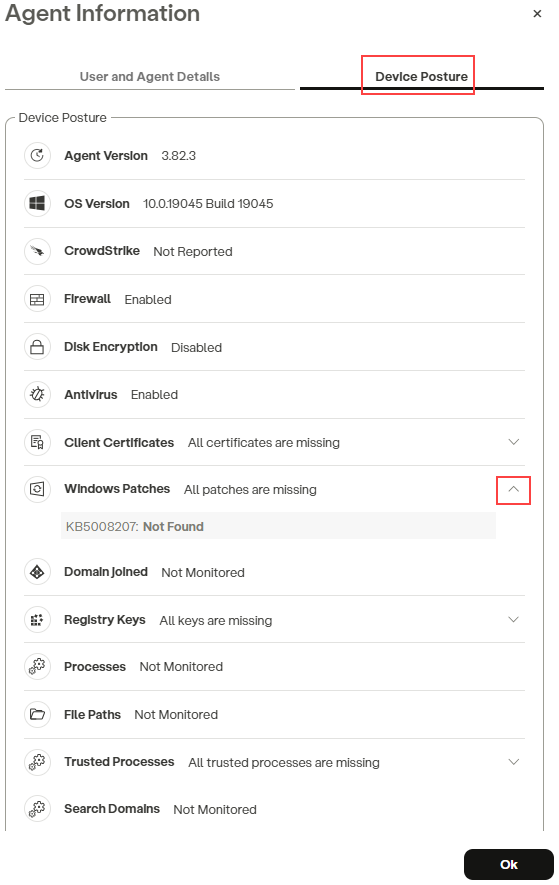
Click the collapsible arrow to view additional information.
Posture Checks:
- Enabled- The condition is set to "enabled".
- Disabled- The condition is not set to "enabled".
- Found- The Atmos Agent was able to locate the file path or process on the device.
- Not Found- The Atmos Agent was unable to locate the file path or process on the device.
- Not Reported- The HPE Aruba Networking SSE Agent did not connect to the internet and was unable to perform this device posture check.
TPM Validation
When a policy rule enforces Enable TPM Check on a Client Certificate posture profile, you can inspect individual endpoint compliance from the Enrolled Agents page as follows:
- In the Management Console, go to Settings → Enrolled Agents.
- Locate the device and click to open its details drawer.
- Select the Device Posture tab.
- If the device fails the client certificate check, one of the following diagnostic statuses will appear:
- Provider Name Mismatch – The private key associated with the matched certificate is not stored in hardware using the device's Trusted Platform Module (TPM) via the Microsoft Platform Crypto Provider.
- Provider Name Missing – The agent did not return provider metadata. This typically occurs when an endpoint is running an older agent version (prior to v3.107) that does not support provider reporting.
- Provider Name Retrieval Error – The Atmos Agent encountered an operating system error while attempting to read the certificate provider property.
Updated about 15 hours ago