
Configuring IPsec Tunnels
IPsec tunnels and the branch gateways that initiate the IPSec tunnels must be defined both in the SSE console. The tunnel orchestration for HPE Aruba Networking branch gateways (EdgeConnect, SD-Branch, or Microbranch) is handled by the EdgeConnect Orchestrator or by HPE Networking Central.
Note:
Using other gateways may require manual configuration.
The recommended tunnel configurations for the edge devices (FW, SD-WAN, and so on) are as follows:
| Parameter | Phase 1 | Phase 2 |
|---|---|---|
| Encryption | AES-256-CBC | AES-256-CBC |
| Integrity | SHA2-256 | SHA2-256 |
| PRF | PRF-HMAC-SHA256 | N/A |
| Authentication | FQDN (IKE ID) &PSK | N/A |
| Source | N/A | Any |
| Destination | N/A | Any |
| Key Exchange Method | Diffie-Hellman | Diffie-Hellman |
| Diffie-Hellman Group | 14 | N/A |
| Perfect Forward Secrecy (PFS) | N/A | 14 |
| Lifetime(s) | 28800 | 7200 |
| Dead Peer Detection (DPD) | Enabled | N/A |
| Forced NAT-Transversal | No | No |
Note:
To present block pages or SSL Decrypt traffic the you must either install an Axis CA certificate on endpoints or upload an Axis CA certificate to Axis Security. For more information see Certificate Management.
To configure IPsec tunnels in the SSE console, complete the following steps:
- In the management console, select Settings -> Connectors -> IPsec Tunnels.
- Select the New IPsec Tunnel button. This will open a new menu.
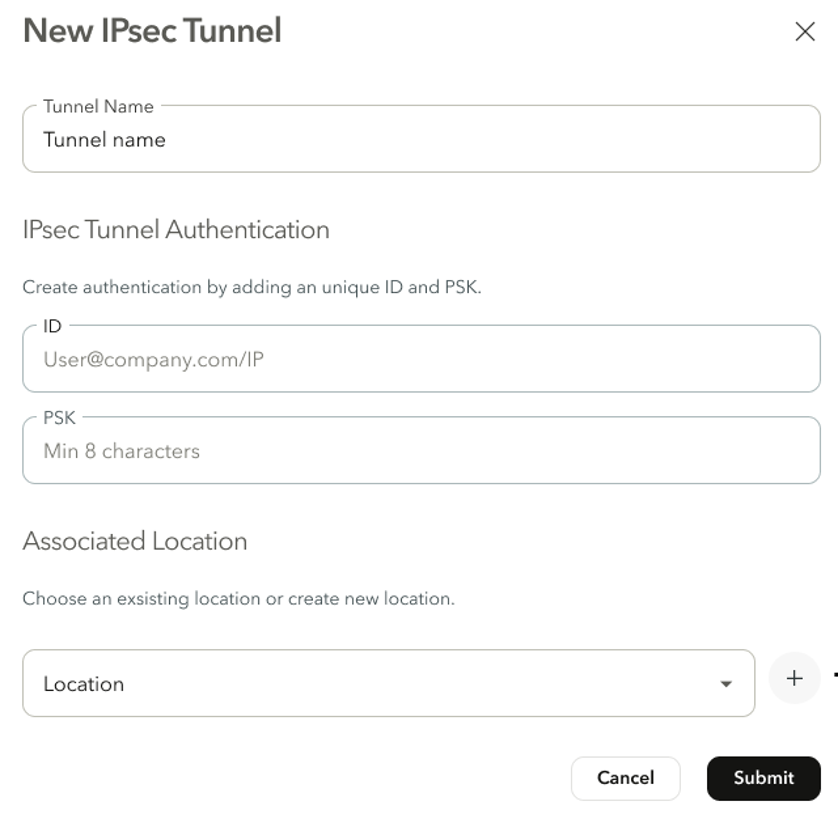
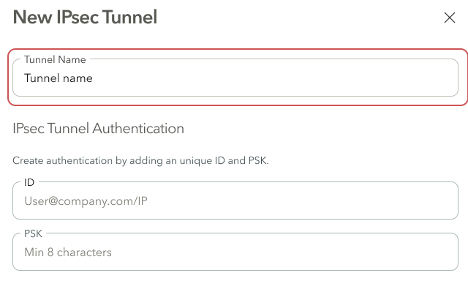
- Under Tunnel Name, enter the desired name for the tunnel.
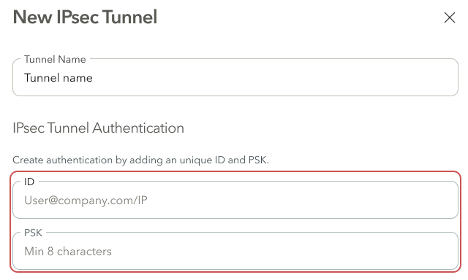
- Under IPsec Tunnel Authentication, create authentication credentials. Keep note of these credentials. They will be used to configure the IPsec tunnel from your network device.
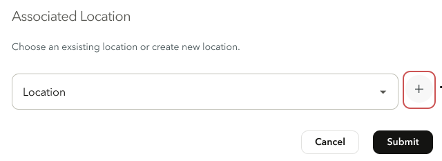
- Select a location to associate the IPsec tunnel to.
Note:
A tunnel can be associated with a single location.
To create a new location, click the + button to the right of the location field. For more information on configuring a new location, see Configuring Locations.
- Once the tunnel has been defined, click Submit.

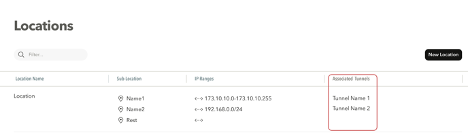
After an IPsec tunnel has been created, it will also appear under Associated Tunnels in the Locations page.
Updated 3 days ago